Impressions of the ThinkPad x220i
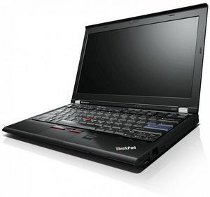
The time finally came for me to replace my little Sony Vaio laptop with something more powerful! What bothered me about the Vaio was its small 10-inch screen and its 1 GB of RAM, which couldn’t be upgraded, while the Atom’s poor performance was getting more and more frustrating.
At first, I narrowed my choices down to the Apple MacBook Air 13 2011 and the ultrabook ranges from Acer, Asus, Lenovo, and Samsung. I ruled out Acer and Asus almost immediately, since they didn’t suit me for a number of reasons. After reading up on Samsung and the Lenovo IdeaPad, I realized they weren’t right for me either, and I was just about to buy a MacBook Air when Borya appeared out of nowhere and showed me his ThinkPad x220i… Just 10–20 minutes later, I was convinced that the x220 suited me better in every practical respect!
By the way, I recommend reading MacBook Air Vs ThinkPad X220 Comparison!, ThinkPad X220 vs. MacBook Air (13-inch, mid 2011), and Lenovo ThinkPad X220 Review.
Why ThinkPad?
My 4290le6 model cost just 27,890 rubles and was a budget model (hence the letter “i” at the end). I bought it at Citilink; it now costs 28,900 rubles. I was choosing between two ThinkPads that were available:
- The first model, 4290r97, was “i3 2.1 GHz + Windows 7 HP + 4 GB Memory” and cost 1,500 rubles more;
- The second model, 4290le6, was “i3 2.3 GHz + FreeDOS + 2 GB Memory”.
Since I don’t need Windows and can add 2 GB of memory for 300 rubles, I decided to get the one with the top-end mobile processor—in other words, I chose the second model!
Here’s a quick rundown of my ThinkPad x220i’s features
- A silent fan and a top-end i3 mobile processor running at 2.3 GHz—it doesn’t get hot. Compared with my Vaio, it’s utterly silent and its performance is out of this world;
- A wide range of ports: 3xUSB2.0 (higher-end models have 3.0), VGA, RJ45, DisplayPort, an SD card reader, ExpressCard 34/54, and a SIM card slot near the battery (though you have to buy WWAN separately, the antenna is already built into the case. Higher-end models have WWAN built in);
- To my mind, the keyboard is very comfortable, although having Fn/Ctrl swapped around annoyed me at first (I even swapped them in the BIOS—there’s an option for that), but then I came around… The other keys are easier to reach when Ctrl is closer to the center! Also worth mentioning are the handy “volume control” buttons and CapsLock with its activity indicator light;
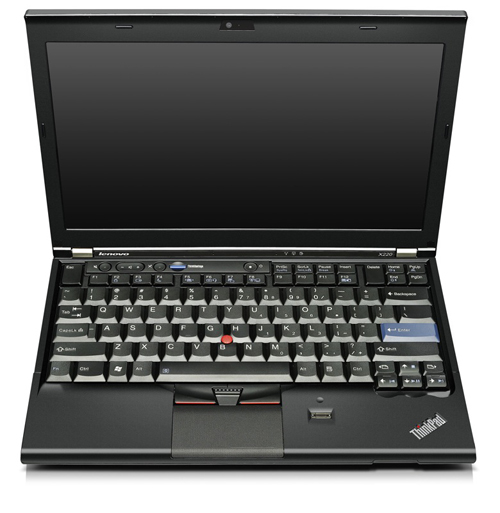 I used to like chiclet keys, but I really liked the ThinkPad’s keyboard!
- The keyboard isn’t “afraid of water”; here are some examples: 1, 2, and 3 (the laptops in the videos are from the previous generation, admittedly, but that doesn’t matter—everything is the same here in that respect);
- There is keyboard illumination, but rather than the keys themselves lighting up, an LED built into the screen shines on them. This is more practical for reading books and easier on the battery!
- There is a touchpad (with multitouch) and a pointing stick;
- A sturdy magnesium case and protection against HDD damage if dropped;
- A matte 12.5-inch screen, and you can also buy a version with IPS (apparently only in higher-end models with an i5/i7, but I’m happy with my TN panel);
- There’s also a docking station connector, which I don’t think I’ll need anytime soon. Both a full-size dock and the UltraBase are supported;
- My laptop came with a 6-cell 29+ battery. You can also buy a 9-cell battery for $100–200 and a slim 6-cell battery; with the 9-cell and 6-cell batteries used together, Lenovo promises 23 hours of battery life. I should mention, though, that under Linux I only get 4–6 hours out of the advertised 7–8 hours (on the 6-cell battery).
- There’s also a good-quality webcam, supposedly 720p… I don’t know much about that, but it looks very good indeed.
You can read more about the specifications and configuration in x220_datasheet.pdf
My laptop could be expanded with either WWAN (for example, an internal 3G modem) or mSATA; I chose a 40 GB mSATA SSD (Intel 310). I figured that the best place for WWAN was ExpressCard or USB, although, given that the laptop has a GSM SIM card slot and an internal antenna, it’s worth considering buying WWAN instead of mSATA and installing an SSD in place of the HDD.
Overall, I get the impression that ThinkPads were made to be taken apart and put back together. Everything is easy to unscrew, and it’s very neatly built inside too: nothing superfluous, everything convenient, functional, and accessible. On the back of the case, there are special markings depicting the parts you can unscrew (so you don’t have to unscrew everything).
UPDATE: This article has been split into two; see the second part about setting up the SSD
Comments are closed. Read the original discussion in Russian →